1
2
3
4
5
6
7
8
9
10
11
12
13
14
15
16
17
18
19
20
21
22
23
24
25
26
27
28
29
30
31
32
33
34
35
36
37
38
39
40
41
42
43
44
45
46
47
48
49
50
51
52
53
54
55
56
57
58
59
60
61
62
63
64
65
66
67
68
69
70
71
72
73
74
75
76
77
78
79
80
81
82
83
84
85
86
87
88
89
90
91
92
93
94
95
96
97
98
99
100
101
102
103
104
105
106
107
108
109
110
111
112
113
114
115
116
117
118
119
120
121
122
123
124
125
126
127
128
129
130
131
132
133
134
135
136
137
138
139
140
141
142
143
144
145
146
147
148
149
150
151
152
153
154
155
156
157
158
159
160
161
162
163
164
165
166
167
168
169
170
171
172
173
174
175
176
177
178
179
180
181
182
183
184
185
186
187
188
189
190
191
192
193
194
195
196
197
198
199
200
201
202
203
204
205
206
207
208
209
210
211
212
213
214
215
216
217
218
219
220
221
222
223
224
225
226
227
228
229
230
231
232
233
234
235
236
237
238
239
240
241
242
243
244
245
246
247
248
249
250
251
252
253
254
255
256
257
258
259
|
# paper2remarkable
[](https://pypi.org/project/paper2remarkable)
[](https://travis-ci.org/GjjvdBurg/paper2remarkable)
[](https://pepy.tech/project/paper2remarkable/month)
``paper2remarkable`` is a command line program for quickly and easily
transferring an academic paper to your [reMarkable](https://remarkable.com/):
```
$ p2r https://arxiv.org/abs/1811.11242
```
There is also support for transferring an article from a website:
```
$ p2r https://hbr.org/2019/11/getting-your-team-to-do-more-than-meet-deadlines
```
The script can be run through the ``p2r`` command line program or via Docker
(see below). If you're using MacOS, you might be interested in the [Alfred
workflow](#alfred) or [Printing to p2r](#printing). On Linux, a background
terminal such as [Guake](http://guake-project.org/) can be very handy. Note
that even without a reMarkable, this program can make downloading papers
easier (just use the `-n` flag).
``paper2remarkable`` makes it as easy as possible to get a PDF on your
reMarkable from any of the following sources:
* [arXiv](https://arxiv.org/)
* [ACM Digital Library](https://dl.acm.org/dl.cfm)
* [CiteSeerX](http://citeseerx.ist.psu.edu/index)
* [JMLR](http://jmlr.org)
* [NBER](https://www.nber.org)
* [NeurIPS](https://papers.nips.cc/)
* [OpenReview](https://openreview.net/)
* [PMLR](http://proceedings.mlr.press/)
* [PubMed Central](https://www.ncbi.nlm.nih.gov/pmc/)
* [SpringerLink](https://link.springer.com/)
* A generic URL to a PDF file
* A local PDF file
* Any article on a website
The program aims to be flexible to the exact source URL, so for many of the
academic sources you can either provide a URL to the abstract page or to the
PDF file. If you have an source that you would like to see added to the list,
let me know!
``paper2remarkable`` takes the source URL and:
1. Downloads the pdf
2. Removes the arXiv timestamp (for arXiv sources)
3. Crops the pdf to remove unnecessary borders
4. Shrinks the pdf file to reduce the filesize
5. Generates a nice filename based on author/title/year of the paper
6. Uploads it to your reMarkable using
[rMapi](https://github.com/juruen/rmapi).
Optionally, you can:
- Download a paper but not upload to the reMarkable using the ``-n`` switch.
- Insert a blank page after each page using the ``-b`` switch (useful for note
taking!)
- Center (``-c``) or right-align (``-r``) the pdf on the reMarkable (default
is left-aligned), or disable cropping altogether (``-k``).
- Provide an explicit filename using the ``--filename`` parameter
- Specify the location on the reMarkable to place the file (default ``/``)
Here's the full help of the script:
```text
usage: p2r [-h] [-b] [-c] [-d] [-n] [-p REMARKABLE_DIR] [-r] [-k] [-v] [-V]
[--filename FILENAME] [--gs GS] [--pdftoppm PDFTOPPM]
[--pdftk PDFTK] [--qpdf QPDF] [--rmapi RMAPI]
input
Paper2reMarkable version 0.6.5
positional arguments:
input URL to a paper or the path of a local PDF file
optional arguments:
-h, --help show this help message and exit
-b, --blank Add a blank page after every page of the PDF
-c, --center Center the PDF on the page, instead of left align
-d, --debug debug mode, doesn't upload to reMarkable
-n, --no-upload don't upload to the reMarkable, save the output in
current working dir
-p REMARKABLE_DIR, --remarkable-path REMARKABLE_DIR
directory on reMarkable to put the file (created if
missing, default: /)
-r, --right Right align so the menu doesn't cover it
-k, --no-crop Don't crop the pdf file
-v, --verbose be verbose
-V, --version Show version and exit
--filename FILENAME Filename to use for the file on reMarkable
--gs GS path to gs executable (default: gs)
--pdftoppm PDFTOPPM path to pdftoppm executable (default: pdftoppm)
--pdftk PDFTK path to pdftk executable (default: pdftk)
--qpdf QPDF path to qpdf executable (default: qpdf)
--rmapi RMAPI path to rmapi executable (default: rmapi)
```
And here's an example with verbose mode enabled that shows everything the
script does by default:
```
$ p2r -v https://arxiv.org/abs/1811.11242
2019-05-30 00:38:27 - INFO - Starting ArxivProvider
2019-05-30 00:38:27 - INFO - Getting paper info from arXiv
2019-05-30 00:38:27 - INFO - Downloading url: https://arxiv.org/abs/1811.11242
2019-05-30 00:38:27 - INFO - Generating output filename
2019-05-30 00:38:27 - INFO - Created filename: Burg_Nazabal_Sutton_-_Wrangling_Messy_CSV_Files_by_Detecting_Row_and_Type_Patterns_2018.pdf
2019-05-30 00:38:27 - INFO - Downloading file at url: https://arxiv.org/pdf/1811.11242.pdf
2019-05-30 00:38:32 - INFO - Downloading url: https://arxiv.org/pdf/1811.11242.pdf
2019-05-30 00:38:32 - INFO - Removing arXiv timestamp
2019-05-30 00:38:34 - INFO - Cropping pdf file
2019-05-30 00:38:37 - INFO - Shrinking pdf file
2019-05-30 00:38:38 - INFO - Starting upload to reMarkable
2019-05-30 00:38:42 - INFO - Upload successful.
```
## Installation
The script requires the following external programs to be available:
- [pdftk](https://www.pdflabs.com/tools/pdftk-the-pdf-toolkit/),
[qpdf](http://qpdf.sourceforge.net/), or
[pdftk-java](https://gitlab.com/pdftk-java/pdftk), whichever your package
manager provides.
- [GhostScript](https://www.ghostscript.com/)
- [rMAPI](https://github.com/juruen/rmapi)
- Optional: [pdftoppm](https://linux.die.net/man/1/pdftoppm) (recommended for
speed). Usually part of a [Poppler](https://poppler.freedesktop.org/)
installation.
Specifically:
1. First install [rMAPI](https://github.com/juruen/rmapi), using
```
$ go get -u github.com/juruen/rmapi
```
2. Then install system dependencies:
- **Arch Linux:** ``pacman -S pdftk ghostscript poppler``
- **Ubuntu:** ``apt-get install pdftk ghostscript poppler-utils``. Replace
``pdftk`` with ``qpdf`` if your distribution doesn't package ``pdftk``.
- **MacOs:** ``brew install pdftk-java ghostscript poppler`` (using [HomeBrew](https://brew.sh/)).
3. Finally, install ``paper2remarkable``:
```
$ pip install paper2remarkable
```
this installs the ``p2r`` command line program.
If any of the dependencies are not available on the ``PATH`` variable, you can
supply them with the relevant options to the script (for instance ``p2r
--rmapi /path/to/rmapi``). If you run into trouble with the installation,
please let me know!
## Alfred
On MacOS, you can optionally install [this Alfred workflow][workflow]. Alfred
is [a launcher for MacOS](https://www.alfredapp.com/).
Once installed, you can then use `rm` command and `rmb` (for the `--blank`
pages to insert blank pages between pages for notes) with a URL passed. The
global shortcut `Alt-P` will send the current selection to `p2r`. Note that by
default `--right` is passed and `p2r` is executed in your `bash` environment.
You can edit the Workflow in Alfred if this doesn't work for your setup.
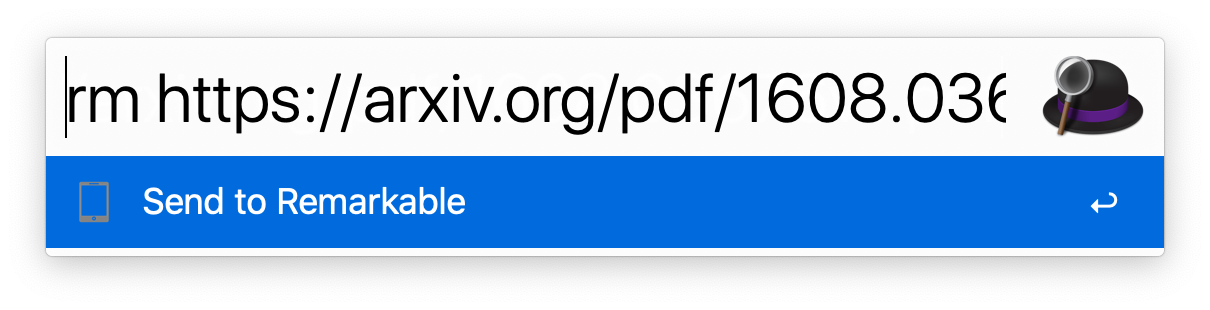
[workflow]: https://github.com/GjjvdBurg/paper2remarkable/blob/master/Remarkable.alfredworkflow?raw=true
## Printing
Printing to `p2r` allows printing prompts to save directly to your reMarkable
tablet, passing through `p2r` for processing.
For MacOS, you can follow [the guide][print-guide] for printing with `rmapi`,
but for the bash script, instead use this script:
```
for f in "$@"
do
bash -c -l "p2r --right '$f'"
done
```
[print-guide]: https://github.com/juruen/rmapi/blob/master/docs/tutorial-print-macosx.md
## Docker
If you'd like to avoid installing the dependencies directly on your machine,
you can use the Dockerfile. To make this work you will need ``git`` and
``docker`` installed.
First clone this repository with `git clone` and `cd` inside of it, then build
the container:
```bash
docker build -t p2r .
```
### Authorization
If you already have a `~/.rmapi` file, you can skip this section. Otherwise
we'll use `rmapi` to create it.
```bash
touch ${HOME}/.rmapi
docker run --rm -i -t -v "${HOME}/.rmapi:/home/user/.rmapi:rw" --entrypoint=rmapi p2r version
```
which should end with output like
```bash
ReMarkable Cloud API Shell
rmapi version: 0.0.5
```
### Usage
Use the container by replacing `p2r` with `docker run --rm -v
"${HOME}/.rmapi:/home/user/.rmapi:rw" p2r`, e.g.
```
# print help and exit
docker run --rm -v "${HOME}/.rmapi:/home/user/.rmapi:rw" p2r --help
# equivalent to above usage
docker run --rm -v "${HOME}/.rmapi:/home/user/.rmapi:rw" p2r -v https://arxiv.org/abs/1811.11242
# to transfer a local file in the current directory
docker run --rm -v "${HOME}/.rmapi:/home/user/.rmapi:rw" -v "$(pwd):/home/user:r" p2r -v localfile.pdf
```
For transferring local files using the Docker image, you may find [this helper
function](https://github.com/GjjvdBurg/paper2remarkable/issues/34#issuecomment-610852258)
useful.
You can also create an [alias](http://tldp.org/LDP/abs/html/aliases.html) in
your ``~/.bashrc`` file to abstract away the Docker commands:
```bash
# in ~/.bashrc
alias p2r="docker run --rm -v \"${HOME}/.rmapi:/home/user/.rmapi:rw\" p2r"
```
Then you can use ``paper2remarkable`` from the command line as ``p2r``!
# Notes
License: MIT
If you find a problem or want to suggest a feature, please let us know! You're
helping to make this project better!
|
